Compra 2 Xtand Orion Pro y obtén un descuento de 20%

Blog
Índice
Xtand Orion gives you two ways to control its support response:
- Intelligent Mode, or Auto Mode, adjusts compression automatically using movement data.
- Manual Mode maintains a fixed pressure selected through the Xtand App.
Auto Mode is designed for activities in which movement and intensity change. Manual Mode is intended for users who prefer a consistent, directly selected support setting.
Neither mode is automatically better for every situation. The right option depends on your activity, comfort, and preference.
Respuesta rápida: Choose Auto Mode when you want Orion to adjust its support response as your movement changes. Choose Manual Mode when you want to set and maintain a specific pressure. Always begin at the lowest comfortable setting and test the device at low intensity.
What Is Auto Mode on Xtand Orion?
Xtand’s official documentation calls the automatic setting Intelligent Mode. In the app’s Exercise Mode Selector, it may appear as Intelligent Auto.
In this mode, Orion uses sensor input and software to interpret movement and adjust pneumatic pressure automatically within its configured range.
According to the current Xtand Orion product specifications, the sensors monitor movement signals such as:
- Knee angle
- Movement speed
- Acceleration
The product page lists walking, running, sprinting, jumping, and squatting among its recognized movement patterns. The official manual also provides an LED indication for stair-climbing detection.
Orion then uses this movement information to change its compression response rather than remaining at one manually selected pressure.
How Auto Mode Works
The process can be summarized in three steps:
- Sense: Sensors collect movement information.
- Interpret: Software evaluates the detected pattern and intensity.
- Adjust: The pneumatic system changes pressure within the configured operating range.
The official manual states that Intelligent Mode performs automatic dynamic pressure tuning in approximately 1–3 seconds, based on factors including knee flexion and impact.
This does not mean the system can perfectly identify every movement. Recognition may be affected by fit, anatomy, clothing, low battery, rapid transitions, sensor obstruction, firmware, and other conditions.
Continue monitoring how the product feels instead of relying only on the app or algorithm.
When Should You Use Auto Mode?
Auto Mode may be appropriate when your activity includes frequent transitions in pace, movement, or intensity.
Examples include:
- Running with changing speeds
- Walk-run intervals
- Hiking across changing terrain
- Stair use
- Mixed gym workouts
- Sessions that alternate between walking, squatting, and other supported movements
- Daily activities that move between rest and higher-intensity effort
The main advantage is convenience. Once the mode is configured, Orion is designed to change its support response without requiring you to select a new pressure for every transition.
However, Auto Mode should not be treated as injury-prevention equipment or as proof that every sport-specific action has been correctly identified.
What Is Manual Mode on Xtand Orion?
Manual Mode applies a fixed custom pressure selected through the Xtand App.
Rather than automatically changing the compression response as activity changes, Orion maintains the pressure setting selected by the user.
This can be useful when you:
- Prefer a consistent support sensation
- Are performing a controlled or predictable activity
- Already know which setting feels comfortable
- Want to compare different pressure settings
- Do not want compression to change during a particular session
Manual Mode provides more direct control, but it also makes the user responsible for selecting an appropriate setting.
Higher pressure is not necessarily better. Begin at the lowest effective level and reassess comfort after several minutes.
When Should You Use Manual Mode?
Manual Mode may suit activities with a relatively consistent movement pattern or intensity.
Examples can include:
- Controlled warm-up movements
- Light walking
- A specific gym exercise
- Low-intensity training
- Short, predictable activity sessions
- Testing a preferred pressure in a controlled environment
Do not use Manual Mode to apply excessive pressure or continue exercising through pain, numbness, instability, or injury.
Auto Mode vs Manual Mode
| Característica | Auto Mode / Intelligent Mode | Manual Mode |
| Official app label | Intelligent Auto | Manual Fixed Pressure |
| Pressure adjustment | Automatic within the configured system range | Fixed at the user-selected level |
| Primary input | Movement and sensor data | Direct user selection |
| Response to activity changes | Designed to change automatically | Remains at the selected setting |
| User involvement during activity | Lower | Higher |
| Best suited to | Changing movement conditions | Controlled or predictable activity |
| Main advantage | Hands-free adaptation | Direct pressure control |
| Main consideration | Movement recognition may not always be accurate | User must select an appropriate pressure |
| App required for setup | Yes, for mode selection and tuning | Yes, for pressure selection |
| Safety approach | Continue monitoring comfort and fit | Begin low and avoid excessive pressure |
Which Mode Should You Choose?
Choose Auto Mode if:
- Your activity changes frequently.
- Your pace or movement intensity varies.
- You prefer automatic pressure adjustment.
- You want a more hands-free experience.
- You are comfortable allowing the system to respond to detected movement.
Choose Manual Mode if:
- You want a consistent pressure.
- Your activity is controlled and predictable.
- You already know which setting feels comfortable.
- You prefer direct control.
- You are testing pressure levels in a safe environment.
You can try both modes during separate low-intensity sessions and compare comfort, fit, and support response.
Do not begin by testing a new mode during a demanding workout, on uneven terrain, or in another situation where stopping may be difficult.
A Simple Running Example
Imagine a workout that includes:
Walking warm-up → Easy run → Faster interval → Recovery walk
In Auto Mode, Orion is designed to interpret supported movement changes and adjust its compression response automatically.
In Manual Mode, Orion maintains the pressure you selected in the app, even when your pace changes.
This illustrates the main difference:
- Auto Mode: The system changes its response.
- Manual Mode: You choose a response and keep it fixed.
Auto Mode does not guarantee that every transition will be identified correctly. Continue paying attention to the product’s position, pressure, and effect on your movement.
A Simple Gym Example
Imagine a workout that includes walking, bodyweight squats, rest periods, and another lower-body exercise.
Auto Mode may appeal to someone who wants the support response to change with recognized activity patterns.
Manual Mode may appeal to someone performing a controlled set who wants the same pressure throughout that exercise.
The better choice depends on whether you prefer automatic adaptation or direct control—not on which mode applies the most pressure.
How to Select a Mode in the Xtand App
Mode selection and pressure tuning are managed through the Xtand App.
The exact interface may change with app or firmware updates, but the general process is:
- Wear and position Xtand Orion correctly.
- Press and hold the module button for approximately three seconds.
- Open the official Xtand App.
- Confirm that the correct Orion device is connected.
- Open the Exercise Mode Selector.
- Choose Intelligent Auto or Manual Fixed Pressure.
- If using Manual Mode, begin at the lowest comfortable pressure.
- Test the selected mode with light movement.
- Recheck the strap position and comfort after several minutes.
A steady white indicator shows that Intelligent Mode is active under the current official LED guide.
Do not operate the app or change settings while crossing a road, using stairs, moving over uneven terrain, or performing an unstable exercise.
Tips for Using Auto Mode Safely
Before using Intelligent Mode:
- Confirm that the strap is positioned 3–5 cm below the kneecap.
- Keep the AI module on the outer side of the knee.
- Make sure the strap is snug but not tight.
- Confirm that the device is sufficiently charged.
- Test the mode at low intensity.
- Monitor pressure instead of assuming detection is correct.
- Stop if the strap slips, rotates, or changes your gait.
Rapid movement transitions, incorrect fit, loose clothing, or software errors can affect recognition.
Tips for Using Manual Mode Safely
When using Manual Mode:
- Begin at the lowest effective pressure.
- Increase pressure only gradually.
- Test the setting with controlled movement.
- Do not assume more pressure provides better support.
- Reassess comfort after several minutes.
- Reduce the setting if it feels excessive.
- Power off and loosen the strap if you cannot safely use the app.
Manual Mode should provide a controlled setting, not a reason to ignore discomfort.
When to Stop Using Either Mode
Stop your activity, power off the device, and remove or loosen Orion if you experience:
- Numbness
- Tingling
- Coldness below the strap
- Skin discoloration
- Increasing pain
- Swelling or throbbing
- Burning
- Loss of sensation
- Restricted movement
- Dizziness or altered gait
- Unexpected continuous inflation
- Unusual heat, noise, or vibration
Seek medical attention if severe or persistent symptoms do not resolve promptly.
Preguntas frecuentes
Is Auto Mode the same as Intelligent Mode?
Yes. Xtand’s manual uses the name Intelligent Mode, while the app may display Intelligent Auto. “Auto Mode” is a simplified name for the same automatic operating approach.
What does Auto Mode recognize?
Xtand currently lists walking, running, sprinting, jumping, and squatting among Orion’s recognized movement patterns. The manual also includes an LED indication for stair-climbing detection.
Do not assume the system separately identifies every sport-specific movement, such as each lateral cut, landing type, or direction change.
Does Manual Mode turn off the sensors?
The official documentation defines Manual Mode as a fixed custom pressure selected through the Xtand App. It does not state that all sensor collection or activity recording is disabled. Avoid claiming that Manual Mode turns the sensors off unless future documentation confirms it.
Can I change modes without the Xtand App?
The current manual states that mode selection and pressure tuning are managed through the Xtand App. Orion can operate independently after configuration, but the app is needed to change these settings.
Can I switch modes while exercising?
Stop in a safe, stable place before using the app or adjusting the product. Do not change settings while crossing roads, using stairs, moving on uneven terrain, or performing an unstable movement.
Which mode applies more pressure?
Neither mode is defined simply as the “stronger” option. Auto Mode changes pressure according to detected movement, while Manual Mode maintains the selected pressure. Actual pressure depends on the configuration and activity.
Is Auto Mode better for sports?
Auto Mode may be more convenient for permitted activities with changing movement conditions. It does not guarantee correct activity recognition, injury prevention, balance, or a particular athletic result.
What if Auto Mode feels too strong?
Reduce the configured pressure through the app or stop, power off, and loosen the strap. Do not continue if you experience pain, numbness, tingling, or skin discoloration.
Automatic Adaptation or Direct Control
Xtand Orion gives you two distinct support experiences:
Auto Mode: Sense → Interpret → Adjust
Manual Mode: Select → Maintain → Move
Use Auto Mode when you want the system to respond to supported movement changes. Use Manual Mode when you prefer a consistent pressure selected directly through the app.
Whichever mode you choose, start low, test it safely, and continue monitoring fit and comfort throughout your activity.
Read the Official User Manual and Safety Guide →
Xtand Orion Pro is a consumer wearable support product, not a medical device. It cannot diagnose, treat, cure, or prevent injuries, diseases, or joint conditions. Motion, pressure, impact, and activity information is provided for general wellness reference only. Actual performance may vary according to fit, anatomy, activity, clothing, environmental conditions, battery level, firmware, and correct use.
Publicaciones recientes
- Auto Mode vs Manual Mode on Xtand Orion
 Quick answer: Choose Auto Mode when you want Orion to adjust its support response as your movement changes. Choose Manual
 - Xtand Orion Size Guide
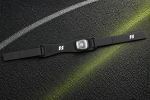 Quick answer: Measure your leg 3–5 cm below the kneecap. If the circumference is between 34 and 45 cm, it
 - How to Wear Xtand Orion Correctly
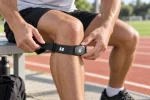 Quick fit: 3–5 cm below the kneecap, logo forward, AI module on the outer side, buckle secure, and one finger
 - Why Your Knee Strap Slips During Exercise—and How to Fix It
 Activity Why the strap may shift Running Repeated flexion and extension Squatting Deeper knee bending changes leg shape Lunging Split
 - Knee Support for Squats, Lunges, and Strength Training
 The squat is one of the most widely used lower-body exercises.As you descend, your knees and hips flex while your
Comentarios recientes
No hay comentarios que mostrar.